The activity monitor is a monitor module in ISM used to visually overview a IS servers status in regards to transactions, events and process groups.
An activity monitor can use Saved Searches, Metric adapter and Metric process for monitoring.
Example below shows an activity monitor with one of each.

Root transactions is the group name which got one search called transactions and it got zero transactions.
Next is the group/tag pipelines which got one Metric process called TestMetricP and it shows zero pipelines out of 1 is in use.
Finally we got the Metric adapter in the group called Root Queue and the Metric adapter shows how many messages on the queue and current throughput on queue.
Setting up Activity monitor
To set up an activity monitor you need to do a saved search, this is done by opening the corresponding Search window and filling in the search data (Setting up Search In Log) and then pressing save.
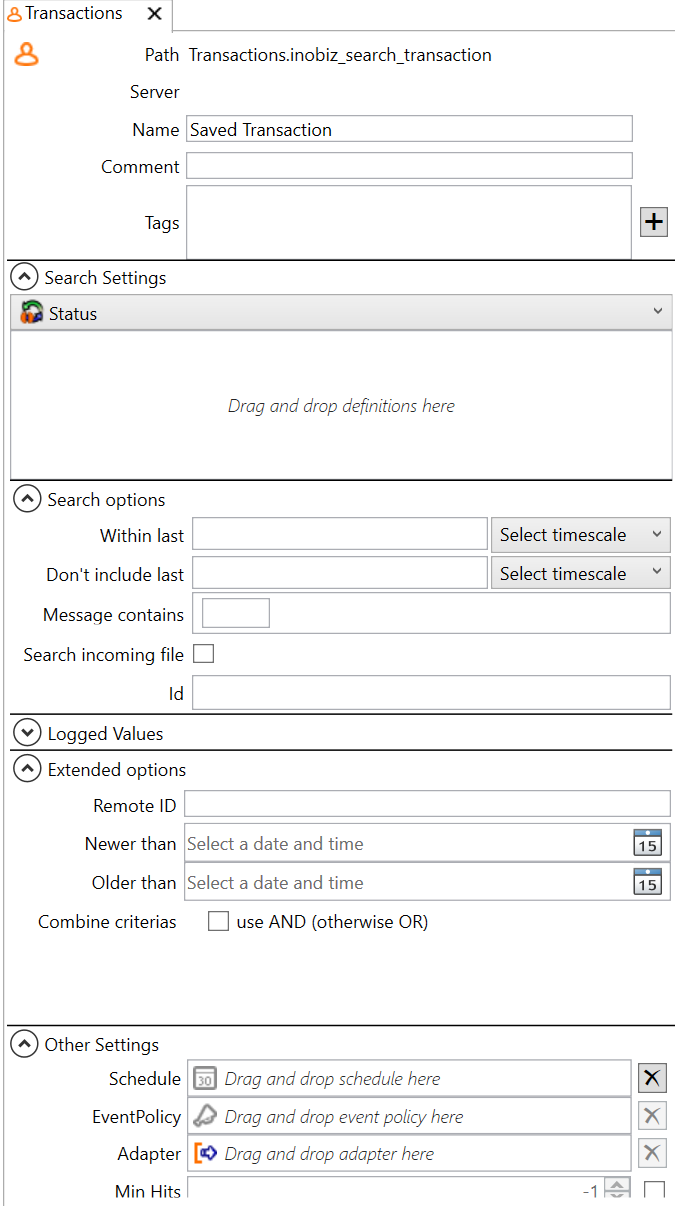
This will open the search as saved search definition in which you need to add a tag which will used to group the search in activity monitor, a Name for the search and finally a Schedule on how often it should run, (less than 5 seconds is not recommended).
This will give you in the activity monitor a box which reports the search result count.
If you want it to report if a threshold is met or not
Saved Search Other Settings Overview
Schedule – Drag and drop a schedule which will be used to determine how often the saved search will run.
Max – The maximum of accepted count from the search, if the search return more than max it will show up as a red symbol in activity monitor.
Min - The minimum of accepted count from the search, if the search return less than min it will show up as a red symbol in activity monitor.
Adapter – Drag and drop adapter to forward search count result to another adapter.
EventPolicy - If the Min or Max condition is triggered then the eventpolicy will be used.
Example below shows a saved search for transactions and its settings.
0 Comments