Accessing WebTM
From the same server as IS run try:
http://127.0.0.1:24780/Login.html
http://localhost:24780/Login.html
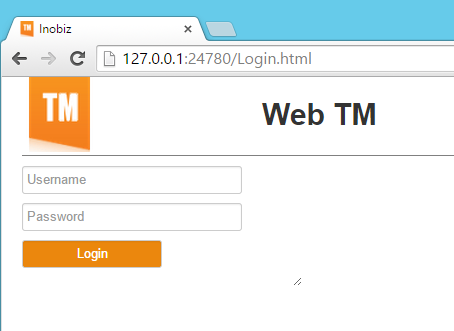
From other places you need to know the name or IP-address of the machine running IS. For example:
http://192.168.0.120:24780/Login.html
or
http://mydomain.com:24780/Login.html
SLL
For added security replace the port number 24780 with 24781 to access WebTM using SSL. Without a signed certificate from a known certificate provider the browsers trying to connect will protest and might not accept the server as safe. Companies like https://www.globalsign.com and http://www.verisign.com can provide such certificates. The connecting user can accept the provided generic certificate as trusted and it will work for testing purposes. The security hole is however significant as any person with an Inobiz IS has the same generic certificate and can (with great expertise) use that to break the SSL encryption and extract sensitive information like passwords.
Put the new public key and private key files generated from your new certificate in the IS install folder with the following names:
server_certificate.pem
server_private_key.pem
SSL address example:
https://mydomain.com:24781/Login.html
Ports
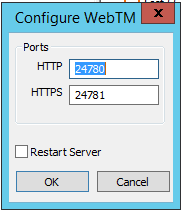
It is possible to configure what ports WebTM uses. Open IS Administration program and under the "Server" menu select "Configure WebTM".
0 Comments