This communication method sends the output files to a FTP server.
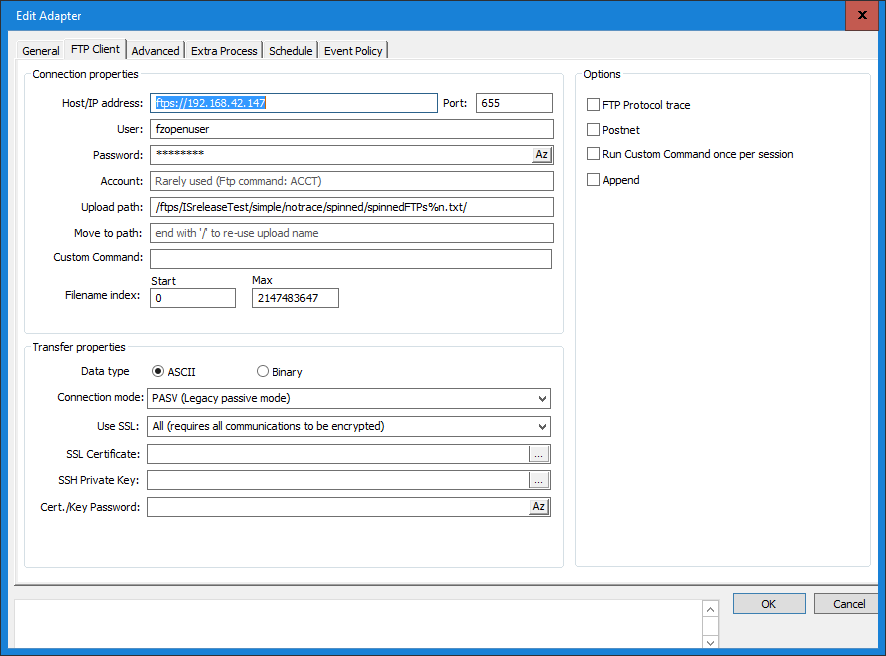
Host - Name or IP Address
Specify the address to the FTP-Server, either using the host name (e.g. ftp.sunet.se) or IP address (e.g. 192.123.23.1). For use of SFTP start with sftp:// (e. g. sftp://ftp.sunet.se).
Port
Select the Port on your computer that you want this FTP communication to use. Usually FTP servers receive connections on port 21 (default value).
User Name and Password
Enter the User name and Password for access to the FTP server, usually provided by the FTP server administrator.
Upload path
Here you specify the directory on the remote FTP server on which you want to write the files. Use of this field is optional. If nothing is specified, the output will be written to the FTP server directory that you come to when you log on to the FTP server (decided by the FTP server). Note that the remote server may not support the folder delimiter"\" (backslash) in the path string and this may cause an error message.
Specify file pattern
Decide how the output files names are to be generated. The options are long or short file names. The short file name consists of eight characters. The long file name consists of the number of characters given by the File name pattern that you specify. In the File pattern field, you enter how you want the output files to be named and the information to be included in the file name. Format codes are used in the File pattern to specify the information to be included, see the chart below.
|
Format code |
Format |
Example pattern |
Example file name |
%d |
Date (CCYYMMDD) |
ND%d.txt |
ND20041224.txt |
%n |
Sequence number, incremented by one.Depends on Number start index value and Number max index value. |
File-%n.edi |
File-1.edi , next file will be named File-2.edi |
%u |
Date without century (YYMMDD) |
Ext_%u.txt |
Ext_011224.txt |
%t |
Time (hhmmss)) |
File-%t.inh |
File-124233.inh |
%h |
Hour (hh) |
|
|
%m |
Minute (mm) |
|
|
%s |
Second (ss) |
|
|
%y |
Year with century (CCYY) |
|
|
%Y |
Year without century (YY) |
|
|
%M |
Month (MM) |
|
|
%D |
Day (DD) |
|
|
Interval of the Auto Generated Index
Define the interval from which the auto-generated number in your file name pattern has to be taken.
Append
If Append to existing file is checked, files in the output folder will not be overwritten if a new file, with the same name, is added to the folder. Instead, the new file will be appended to the old one.
Use Passive Mode
This option determines if the FTP connection should be in Passive or Active mode. The default setting is passive mode as this is frequently the more firewall friendly option. Firewalls often restrict incoming connections, while allowing outgoing connections (Passive mode).
SSL Explicit Encryption
Check this box, if the remote FTP server uses FTP with SSL Explicit Encryption.Excerpt from the DART communication’s help file: "ExplicitNormal: Everything is encrypted after the certificate is sent. This is used by many vendors."
Low Level Trace
Checking this box enables the trace functions in the FTP component. The trace filename is FTP_out_dart_trace_X.log, where X is the definition ID number. The trace file is created in the .\TraceDir directory.
FTP Adapter to Postnet
This help is written in Swedish because the FTP service described is provided by the Swedish Post Office.
Sändning av meddelande - FTP output definition
För att kunna skicka ett meddelande så skall följande inställningar göras:
1. Fältet Remote directory skall vara tomt om inte Posten har angivit något annat.
2. I fältet File name så skall det namnet på filen som erhållits från Posten fyllas i, om Posten inte har angett något namn så fyll i godtyckligt filnamn. OBS! Filnamnsfältet får inte vara tomt.
3. Append skall inte vara ikryssad.
4. Transfer mode skall vara ASCII.
5. Det är valfritt om Use sheduled output skall användas eller inte.
6. Use temporary transfer file name, rename file after completed file transfer skall inte vara ikryssad.
7. Use passive mode skall inte vara ikryssad eftersom Postens FTP tjänst inte stödjer detta kommando.
8. I fältet Port så skall den porten som Postens FTP tjänst använder skrivas in, vanligtvis så är det default porten 21.
9. I fältet Host - name or IP address så skall namnet på Postens FTP tjänst server skrivas in, detta värde erhålls från Posten. Formatet kan vara t.ex. ftp.edi.posten.se eller edi.postnet.se.
10. User och Password fylls i med från Posten erhållna värden.
0 Comments