This communication adapter is only for use with mappings that fetch information from an SQL database.
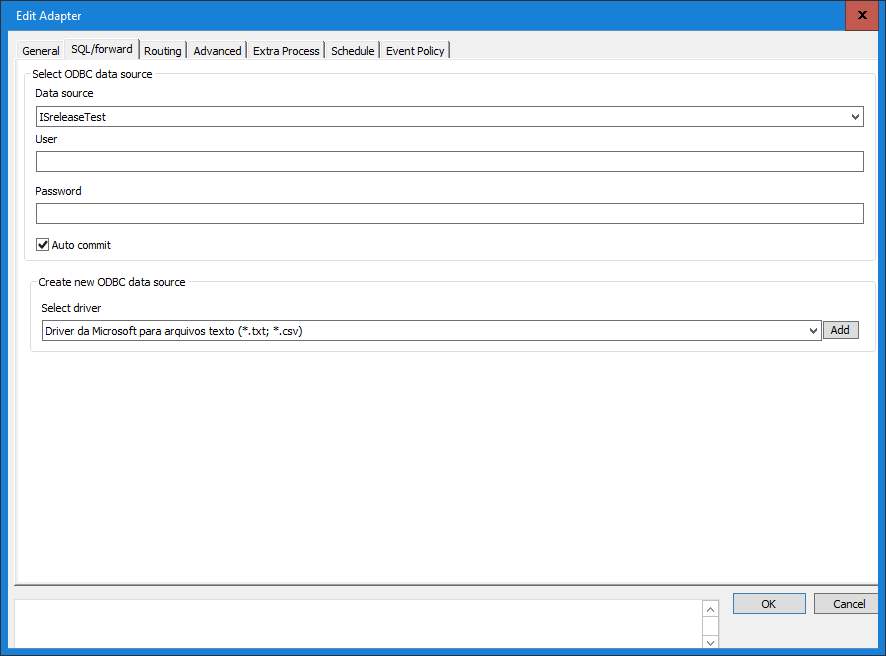
Select ODBC data source
In the SQL tab window, you can make the following settings:
Data source
Select the ODBC source from which you want the integration to fetch its data. You do this from a list of all the local ODBC sources.
User & Password
Enter the user name for the ODBC source that you chose above and enter the password for the same data source. (“sa” is just an example but is often used as a default value).
Auto Commit
If you leave this box unchecked, the mapping will use the SQL option NOAUTOCOMMIT. This means that the programmer has to issue explicitly a COMMIT SQL statement, after an INSERT, DELETE or an UPDATE, as needed. Put in another way, this means that the mapping will not approve the read statements until all defined statements are approved, committing them as a group. If you check this box, the AUTOCOMMIT mode is selected, and the database system executes a COMMIT after each SQL statement. For further information, see EDI-C programming language help, SQL statements, Transaction handling.
Create new ODBC data source
If an appropriate data source does not exist, then create a new one. To create a new ODBC source, select the type of database you want to connect to from the drop down list. Then click Add to create the new ODBC data source. When you do this, a dialog box opens (different dialog boxes depending on the type of database you selected from the list) in which you set up the new data source that you want.
0 Comments